Sengled smart bulb reset steps for connection errors
A Sengled smart bulb that drops offline can wreck a room’s whole atmosphere in one irritating move. The warm bias lighting behind the TV turns into a dead strip of white. The saturated movie-night scene refuses to load.
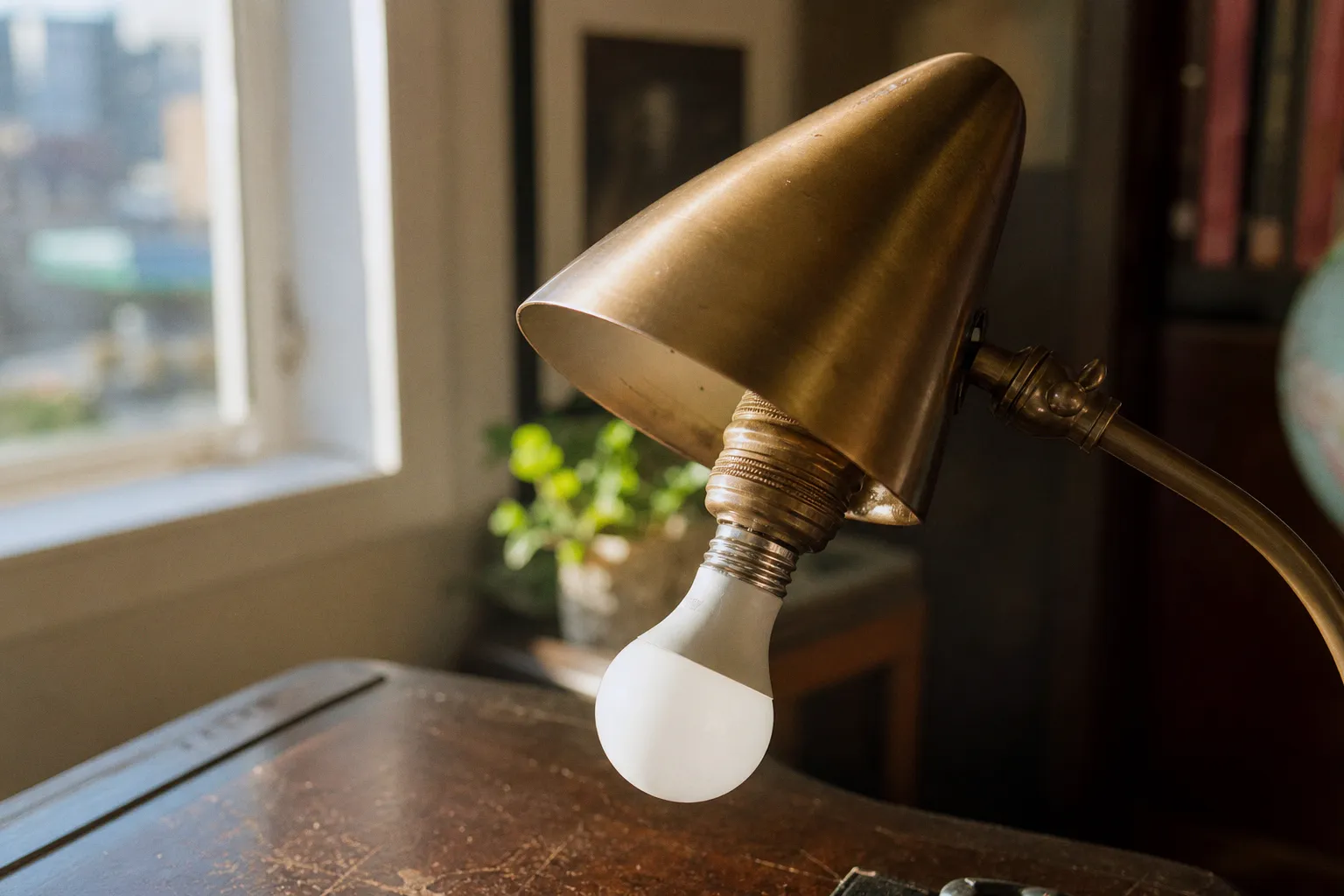
A bedside bulb that should fade to amber at midnight sits there at full blast, flat and clinical.
The good news: most connection failures are not a hardware death sentence. A proper Sengled smart bulb reset can pull the bulb out of its confused pairing state and return it to a clean, discoverable canvas. The catch is that Sengled does not use one universal reset gesture. Wi-Fi and Bluetooth Mesh bulbs use a five-cycle power sequence; Zigbee models need at least ten cycles. Get that distinction wrong, and you can flip the switch all evening without changing a thing.
First: identify the Sengled bulb sitting in your fixture
Before touching the wall switch, work out which wireless language your bulb speaks. This is the difference between a quick recovery and a very energetic but completely pointless light-switch workout.
Look at the model information on the bulb base, its packaging, the order history, or the device entry in the Sengled app. The three common paths are Wi-Fi, Bluetooth Mesh, and Zigbee.
| Bulb connection type | Reset sequence | Successful reset signal | What it connects through |
|---|---|---|---|
| Sengled Wi-Fi | 5 OFF/ON cycles | Blinks 3 times, stays on briefly, then reaches maximum brightness | Your 2.4 GHz Wi-Fi network |
| Sengled Bluetooth Mesh | 5 OFF/ON cycles | Blinks white 3 times, pauses, then blinks once more; color models cycle through RGB | Bluetooth-compatible ecosystem or hub |
| Sengled Zigbee | At least 10 OFF/ON cycles | Flashes 5 times | A Zigbee hub, compatible Echo hub, SmartThings, Home Assistant, and similar controllers |
There is one practical clue that saves time. If your Sengled smart light setup originally asked for your home Wi-Fi password, it is a Wi-Fi model. If it was added to a Zigbee coordinator, hub, or a smart speaker with a built-in hub, it is likely Zigbee. Bluetooth models normally pair nearby through an app before joining a broader lighting setup.
Do not assume a bulb is Wi-Fi simply because you controlled it from a phone. Your phone is the remote; the bulb’s radio is the engine underneath.
Also check the fixture before you reset anything. Sengled bulbs should not be used with in-wall dimmers, ceiling fans, or three-way lamps. Those fixtures can deliver inconsistent power, which is terrible for stable smart lighting and makes the reset pattern nearly impossible to perform cleanly. A smart bulb wants a steady, ordinary switched circuit. Nothing fancy. Nothing fluttering.
A reset is not just a fix for a stubborn bulb. It is a hard cut between the old lighting scene and a fresh pairing state.
Resetting a Sengled Wi-Fi or Bluetooth Mesh bulb: the five-cycle sequence
For Wi-Fi and Bluetooth Mesh models, the reset routine is simple in theory and oddly easy to fumble in practice. The rhythm matters more than brute force. You are giving the bulb a deliberate series of power interruptions, not slowly toggling it while wondering whether the app noticed.
Use the wall switch controlling the fixture or a standard power strip. Start with the bulb powered on.
1. Turn the bulb ON and leave it on. Begin from a stable illuminated state, not from a dark fixture.
2. Switch the power OFF, then back ON. That is one complete cycle.
3. Repeat that OFF/ON action five times. Keep each movement brisk and consistent. You do not need a dramatic pause between cycles; the goal is a quick sequence of full power cuts and restorations.
4. Finish in the ON position. This part is essential. The bulb needs power at the end of the pattern to announce that it accepted the command.
5. Watch instead of immediately tapping through the app. A reset Wi-Fi bulb should blink three times, remain on for a few seconds, and then rise to maximum brightness. A Bluetooth Mesh bulb also blinks white three times, pauses, and blinks white once more. If it is a color-capable model, it should then cycle through its RGB colors.
That flash sequence is the bulb’s little burst of stage lighting: it is no longer clinging to the old network credentials or a broken pairing record. It is ready to be adopted again.
If you see no confirmation flash, wait a moment, make sure the bulb is fully powered, and repeat the process from the start. The usual mistake is losing count or ending with the switch off. Another common problem is a fixture that does not truly cut power cleanly—particularly a lamp with a touch control, a dimmer, or a three-way mechanism.
What to do immediately after the five-cycle reset
Once the bulb has flashed, do not leave it glowing at maximum brightness while you hunt through three different apps. Open the ecosystem you plan to use first and begin adding the bulb while it is freshly reset.
For a Wi-Fi bulb, this means the Sengled app’s device-add process and a phone connected to the correct Wi-Fi band. For Bluetooth, keep the phone close to the bulb during discovery. Bluetooth pairing is inherently local; trying to enroll a bulb from across the house through two walls and a refrigerator is a wonderful way to create the illusion that the reset failed.
If the bulb appears but then becomes a Sengled Wi-Fi bulb offline problem again minutes later, do not reset it repeatedly just yet. That pattern usually points to the network, fixture power, or app permissions rather than an incomplete reset.
Zigbee bulbs need ten cycles—and a little more patience
Sengled Zigbee bulbs use a longer reset pattern: at least ten OFF/ON cycles, beginning with the bulb on and ending with it on. After the tenth cycle, the bulb should flash five times.
Yes, ten. Not five. This is where many reset attempts quietly fail.
The process looks like this:
1. Turn the Sengled Zigbee bulb on.
2. Toggle power OFF and ON repeatedly at least ten times.
3. Keep the rhythm quick and steady.
4. End with the power ON.
5. Wait for the five flashes that confirm the factory reset.
6. Put your Zigbee hub or controller into pairing mode and add the bulb as a new device.
The phrase “at least ten” matters. If you lose track, do not gamble on whether you reached the number. Start again from the bulb-on position and perform a clean ten-cycle sequence. A phone stopwatch is unnecessary; counting out loud is more reliable than it sounds.
A reset Zigbee bulb has forgotten its previous coordinator. That is exactly what you want if it has fallen off a Zigbee network, moved to a different hub, or remained ghosted in an old smart-home setup after a migration.
Pair close to the hub before chasing range problems
Zigbee is designed as a mesh, and a healthy mesh can carry lighting commands through other powered Zigbee devices. But initial pairing is not the moment to test the outer limits of your home’s radio geography.
If possible, reset and pair the bulb in a lamp or fixture relatively close to the hub. Once the controller has recognized it and the device is stable, move it to its final spot. This is especially useful for a bulb intended to become ambient lighting in a media room, where TVs, receivers, metal mounts, and dense cables can make wireless behavior feel less glamorous than the finished lighting scene.
If your home theater automation relies on a Zigbee bridge, make sure that bridge is actively accepting new devices before the reset. A newly reset bulb will not automatically return to its old room, group, dimming behavior, or cinematic color presets. It is a blank device again. Rebuild the placement, name it clearly, and restore it to the automation that makes the space feel alive.
The best smart lighting disappears into the room. The reset process should disappear too—once you give the bulb the right radio, the right sequence, and clean power.
The Alexa skill is gone. Your bulb may still have a path forward.
The smart-lighting landscape shifted sharply on August 1, 2025, when Amazon permanently discontinued the Sengled Home Alexa skill after recurring cloud outages. For owners of cloud-connected Sengled Wi-Fi bulbs, that means Alexa voice commands and Alexa routines through that official skill are no longer available.
That is not the same as saying every Sengled bulb has become useless in an Alexa-centered home. The connection route now matters enormously.
Sengled bulbs that support Zigbee, Matter, or Bluetooth can be connected directly to compatible Echo devices that include the appropriate smart-home hub capability. In that setup, the voice assistant is not leaning on the retired Sengled cloud skill in the same way. The bulb joins the local or hub-based environment directly.
Here is the practical distinction:
- Wi-Fi Sengled bulbs still need their 2.4 GHz network and the Sengled app for setup, but they cannot depend on the discontinued official Alexa skill for voice control and routines.
- Zigbee Sengled bulbs can be paired directly with a compatible Zigbee hub, including certain Echo devices with built-in hubs, or with platforms such as SmartThings and Home Assistant.
- Matter-capable products are designed around direct ecosystem pairing rather than a single-brand cloud skill, though support depends on the exact device and controller.
- Bluetooth-compatible Sengled bulbs may be paired through compatible local ecosystems, but Bluetooth’s range and controller support need to suit the room.
For Wi-Fi bulb owners who built an entire routine around Alexa—“movie mode,” “good night,” “turn the hallway cobalt for the game”—the frustrating answer is that a factory reset cannot restore a cloud integration that no longer exists. Resetting solves pairing corruption. It does not reverse a platform discontinuation.
One workaround for some Wi-Fi setups is using a SmartThings bridge to bring those bulbs into a broader automation environment. But treat that as a migration decision, not a magical toggle. The cleanest long-term experience increasingly comes from choosing bulbs and controllers that talk locally through Zigbee, Matter, or another supported hub path.
Why your Sengled Wi-Fi bulb goes offline after a successful reset
The reset can be flawless. The three flashes can be crisp. The bulb can appear in the app. And then it can vanish again. That is usually the point where the network reveals itself as the real culprit.
Sengled Wi-Fi bulbs support 2.4 GHz Wi-Fi only. They do not join 5 GHz networks. Modern routers often combine both bands under one network name, which is convenient until onboarding gets temperamental. Your phone may be sitting on 5 GHz while the bulb only understands 2.4 GHz, and the setup process stalls in that awkward gap.
Work through these friction points before resetting again:
- Put your phone on a 2.4 GHz network during setup. If your router exposes separate 2.4 GHz and 5 GHz names, choose the 2.4 GHz one explicitly. If it uses a combined name, temporarily adjusting the router’s band-steering behavior may help, depending on the hardware.
- Check the Wi-Fi password for problematic special characters. Some Sengled Wi-Fi setup failures are tied to unsupported characters in the password. This is not an invitation to weaken your network permanently; it is a clue when every other device joins but the bulb will not.
- Stand close to the router for first pairing. A bulb can be destined for a dramatic ceiling fixture at the far end of the house, but enroll it where the 2.4 GHz signal is strong. Move it after the connection is stable.
- Give the bulb continuous power. Smart bulbs need the wall switch left on. If someone physically switches off the circuit every morning, the bulb cannot listen for app commands, scenes, or voice requests. Smart lighting needs power even when the room is visually dark.
- Check app permissions on newer iPhones. On iOS 26 or later, Local Network permission must be enabled for the Sengled Home app. Without it, the app may not discover or communicate with a Wi-Fi bulb on your network.
That last point is easy to miss because it does not look like a lighting problem. The bulb is bright. The router is working. The phone has internet. Yet the app cannot see the local device because iOS has shut the door between them.
Do not reset your way around a router problem
There is a particular smart-home loop that feels productive but goes nowhere: reset bulb, try pairing, fail, reset bulb, try pairing from the same incompatible network state, fail again.
Break the loop. Confirm 2.4 GHz. Confirm local-network permission. Confirm steady electrical power. Then run the reset once more if the bulb is still stuck in its old state.
The reset is the clean slate. It is not the whole installation.
Rebuilding the atmosphere after the bulb returns
Once your Sengled smart bulb is paired again, resist the temptation to stop at “it turns on.” That is the lowest possible bar for a device capable of reshaping a room.
Recreate the lighting deliberately:
1. Name the bulb by location, not by brand or color. “TV Left,” “Bookcase Glow,” or “Bedroom Lantern” makes voice commands and automation rules feel natural. “Sengled Bulb 4” is how scenes become clutter.
2. Build one dependable white-light scene first. Set a warm, comfortable evening level or a crisp daytime brightness. Confirm it responds consistently before layering color effects.
3. Use color as architectural light, not overhead punishment. A saturated blue behind a display, a low magenta wash across a shelf, or a deep amber corner can give a room dimension. A full ceiling fixture blasting green is usually less “immersive lounge” and more “emergency at the arcade.”
4. Keep entertainment automations restrained. For a connected TV setup, dimming the nearby lamps and warming the background light often creates more impact than trying to make every bulb chase every frame. The room should support the screen, not compete with it.
5. Create an exit scene. The best movie-night lighting has a graceful landing: media lights rise gently, bias lights soften, and the room becomes usable again without a harsh blast of cold white.
That final step is the one people skip. They build the spectacular scene, then end the film and stumble around in near darkness or snap every lamp to 100 percent. A polished smart-home experience has transitions. It knows how to arrive and how to leave.
A reset is a reset—not a verdict on the bulb
A Sengled smart bulb that refuses to connect can make a carefully tuned room feel suddenly ordinary. But in most cases, the recovery is wonderfully physical: a controlled sequence at the switch, a clear flash signal, then a fresh pairing attempt through the right network or hub.
Use five power cycles for Wi-Fi and Bluetooth Mesh. Use at least ten for Zigbee. Keep Wi-Fi bulbs on 2.4 GHz, allow the Sengled app local-network access on newer iOS versions, and do not expect a reset to resurrect the discontinued Sengled Alexa skill.
Then rebuild the scene with intention. The technical fix takes minutes. The payoff is the return of that soft, dynamic glow that makes a screen look richer, music feel bigger, and a familiar room suddenly seem designed for the moment.