Check Zigbee channel interference with 3 free tools
Your living room lights stutter. The motion sensor fires three seconds after you've already walked past. A smart plug refuses the command until you tap the button twice. None of this is a hardware failure. The gear is fine.
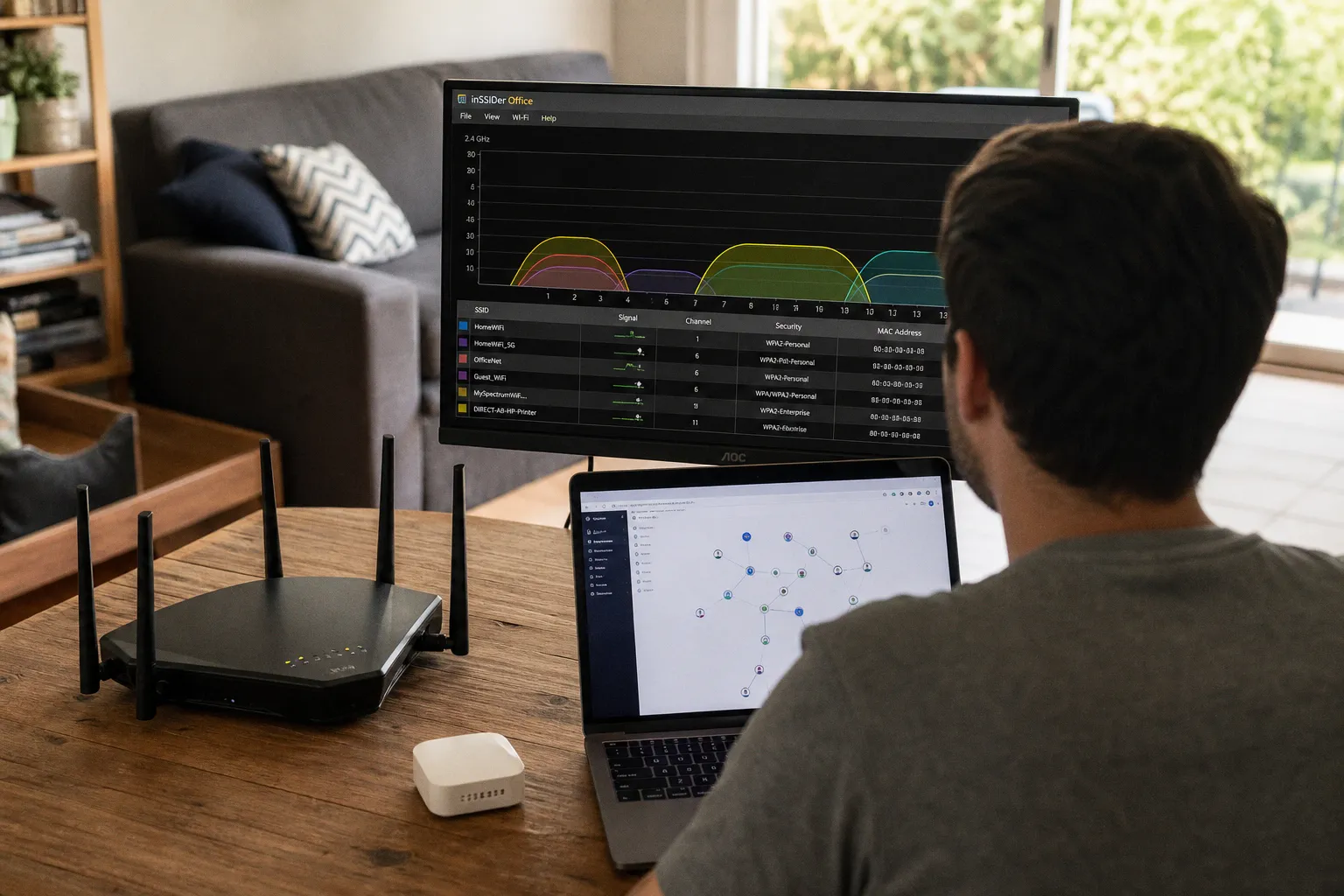
Behind every responsive tap of a smart switch lives a low-power radio whispering across the 2.4 GHz band. So does your Wi-Fi router, your Bluetooth headphones, your microwave, and roughly forty neighboring networks all trying to squeeze through the same 2.4 GHz pipe at the same moment. Zigbee has 16 channels to choose from, but each one is only 5 MHz wide, and standard Wi-Fi channels are 20 MHz wide — meaning a single Wi-Fi network effectively blots out almost four Zigbee channels at once. The result is dropped packets, retransmits, latency spikes, and a smart home that loses the crispness that made it feel luxurious in the first place.
Three free tools — one for the Wi-Fi side, two for the Zigbee side — turn invisible spectrum chaos into a picture you can actually act on.
The 2.4 GHz Bottleneck: Why Zigbee Struggles in Wi-Fi Heavy Homes
Every Zigbee device ships with a tiny antenna and a stubborn belief that the 2.4 GHz ISM band mostly belongs to it. Reality is messier. The 2.4 GHz band is shared globally, license-free, and brutally congested in any apartment building, suburban cul-de-sac, or office floor where one person's router can hear thirty neighbors'. Zigbee was architected for low-bandwidth, low-duty-cycle chatter — on/off commands, sensor ticks, temperature reports — so it expects quiet airtime. Wi-Fi was architected for streaming, which is the opposite expectation: blast as much power as possible, as wide a channel as possible, as fast as possible. When those two philosophies share real estate, Zigbee loses.
The geometry is unforgiving. Zigbee's 16 channels (numbered 11 through 26) are spaced 5 MHz apart, while Wi-Fi's three standard 20 MHz channels (1, 6, and 11) each straddle four Zigbee channels apiece:
- Wi-Fi channel 1 (centered at 2412 MHz) overlaps Zigbee channels 11, 12, 13, and 14.
- Wi-Fi channel 6 (centered at 2437 MHz) overlaps Zigbee channels 16, 17, 18, and 19.
- Wi-Fi channel 11 (centered at 2462 MHz) overlaps Zigbee channels 21, 22, 23, and 24.
That leaves a single narrow window — Zigbee channels 15, 20, 25, and 26 — that fall in the gaps between the three standard Wi-Fi channels. These four are usually the safest places to park a Zigbee mesh. Channels 25 and 26 are particularly valuable because they're tucked at the very top of the band, well clear of Wi-Fi's upper edge even when routers drift upward or fall back to 40 MHz channel-bonding modes.
It's not only Wi-Fi at fault. Microwave ovens leak a punishing 2.4 GHz pulse every time they run. Bluetooth headphones hop across the band at 1,600 hops per second using frequency-hopping spread spectrum, spraying short bursts that Zigbee receivers interpret as noise. Older baby monitors, wireless security cameras, and even some smart garden sensors all add to the murk. This is why a "Zigbee problem" is almost always a "something is squeezing Zigbee out" problem, and the fix begins by actually seeing the spectrum.
Visualizing the Spectrum with InSSIDer and Wi-Fi Analyzer
You can't fix what you can't see. The first job is to map what's already broadcasting on 2.4 GHz, because every Wi-Fi network in range dictates which Zigbee channels remain usable. Two free tools do this job cleanly, and the rest of the diagnostic workflow depends entirely on what they reveal.
InSSIDer (by MetaGeek, free tier for Windows) is the long-standing workhorse for Wi-Fi diagnosis. Launch it, let it scan, and within seconds you get a structured list of every nearby network, sorted by signal strength. Each entry shows the Wi-Fi channel the network is using, the channel width (20 MHz or 40 MHz, occasionally 80 MHz on routers running wide-band legacy modes), and the received signal strength in dBm. The view that matters most is the channel-overlap graph: a horizontal band that lays every Wi-Fi network across its channel footprint. If you see three cleanly separated blocks parked on channels 1, 6, and 11 — your neighbors are doing it right, and Zigbee channels 15, 20, 25, and 26 are wide open. If instead you see five overlapping blocks smeared across the middle of the band, your Zigbee channels 17 through 22 are effectively underwater.
Wi-Fi Analyzer (available on the Microsoft Store and on Android) is the lightweight alternative for quick diagnostics. It does less than InSSIDer but arguably shows the only thing you actually need in an at-a-glance graph: a real-time bar chart of channel usage on the 2.4 GHz band. Open it on a phone, walk through your home, and watch the bars react. The channel with the shortest bar is the one with the most headroom. If you're standing in your living room and channel 11 shows as a towering red column while channels 1 and 6 sit quiet, your existing Wi-Fi setup may be forcing Zigbee into a corner where it has to shout over the noise.
The cleanest Wi-Fi spectrum looks like a row of evenly spaced pillars with empty space between them. Anything messier is a hint that your Zigbee mesh is fighting for its life.
Both tools are diagnostic, not corrective — they show you the battlefield, they don't move the troops. The actual channel change happens on the Zigbee side, which is where the third tool enters.
Decoding Link Quality: Using Zigbee2MQTT for Real-Time Diagnostics
If InSSIDer and Wi-Fi Analyzer expose the Wi-Fi side of the conversation, Zigbee2MQTT exposes Zigbee's response. Zigbee2MQTT is an open-source bridge that connects Zigbee networks (via compatible USB dongles like the Texas Instruments CC2652-based sticks or the Silicon Labs EFR32-series coordinators) to MQTT brokers, turning what would otherwise be a sprawling mesh into a unified, queryable data stream. The feature that matters most for interference diagnosis is its Network Map.
Inside the Zigbee2MQTT web frontend, the Network Map renders every paired device as a node, with lines drawn between the coordinator, routers, and end devices. Each line carries a number: the Link Quality Indicator (LQI). LQI is an 8-bit value ranging from 0 to 255 that the Zigbee radio computes from the signal-to-noise ratio of the last received packet. Higher is better. An LQI of 200 or more between two neighboring devices means clean, healthy communication with little retransmission. An LQI under 100 means the radio had to fight through noise, retransmits, or both to deliver that packet — and an end device with a chronically low LQI is almost certainly living in a high-interference pocket or sitting behind a serious physical obstruction.
The diagnostic power of LQI is that it's real-time and relative. If your front-door sensor has held steady at LQI 220 for months and suddenly drops to 90, something in its neighborhood changed — a new neighbor's router, a relocated microwave, a smart TV running aggressive auto-channel-switching. If a specific device stubbornly sits at LQI 60 regardless of how often you reconfigure the network, the problem is structural: distance, a metal door frame, a wall full of plumbing, or a sheer concrete pour that no channel change will fix on its own.
Zigbee2MQTT also exposes per-device telemetry that surfaces interference without needing a visual map. Drop into the frontend's Diagnostics tab and you'll find:
- Last seen timestamps. Devices whose "last seen" timestamps have gone stale are silently failing.
- RSSI (Received Signal Strength Indicator). Raw dBm readings from each device's perspective, recorded at every packet arrival.
- Route changes. A count of how often a battery-powered end device has had to find a new parent router because its last one became unreachable — a flashing red flag for invisible noise.
The combination is granular: Zigbee2MQTT tells you which devices are struggling; InSSIDer and Wi-Fi Analyzer tell you why.
Strategic Channel Selection: Avoiding the Wi-Fi Overlap Trap
Once the spectrum is mapped, the move is direct: park the Zigbee coordinator on a channel the Wi-Fi world has agreed to leave alone. For most homes, that means Zigbee channel 25 or channel 20 — the two channels that consistently survive standard Wi-Fi deployments centered on channels 1, 6, and 11.
The pragmatic decision matrix looks like this:
| Wi-Fi environment observed in your home | Recommended primary Zigbee channel | Why |
|---|---|---|
| Dense (10+ networks, channels 1/6/11 all saturated) | Zigbee 25 | Top of the band, far from typical 2.4 GHz Wi-Fi activity even with 40 MHz channel widths |
| Standard (a few neighbors on 1/6/11, modest overlap) | Zigbee 20 | Mid-band gap between Wi-Fi 6 and Wi-Fi 11, balanced for mesh range |
| Sparse (rural or detached home, 1–3 Wi-Fi networks) | Zigbee 15 | Lowest clean gap, good propagation for routers on lower floors |
| Zigbee 25 already congested by cascading routers | Zigbee 26 | Narrower propagation but maximum distance from Wi-Fi channels 11 |
The key is not to stop at picking a Zigbee channel — also walk the Wi-Fi side. Most modern routers default to "Auto" channel selection, which usually picks 1, 6, or 11 correctly, but plenty of ISP-provided routers stick to a fixed channel or one that overlaps heavily with neighbors. Locking your home Wi-Fi to channel 1 (or 6, or 11) and your Zigbee to one of the four safe slots creates a coordinated, predictable RF plan rather than a free-for-all that drifts at the router's whim.
Channel selection isn't a one-time fix — it's a recurring calibration. A router shipped last month, a neighbor's new mesh node, even a holiday-season smart-TV upgrade all have the power to shift the entire equilibrium.
One critical caveat worth internalizing: not every Zigbee hub exposes channel selection as a user-facing knob. Hue Bridge and many Aqara hubs manage the Zigbee channel internally and don't surface a manual setting in their apps. This is precisely the gap where Zigbee2MQTT paired with a third-party USB dongle pays for itself — it's the difference between blind faith and visible steering.
Beyond the Channel: Physical Obstructions and Signal Range
Even a perfectly placed, perfectly clear Zigbee channel can degrade into failure under physical stress. Radio waves don't bend around corners for free, and a smart home is full of corner-shaped objects. A few persistent offenders deserve names:
1. Concrete and brick — cut signal strength by 10–15 dB through a single interior wall; two exterior walls can render a battery-powered sensor unreachable from the nearest router.
2. Steel fire doors and HVAC ducting — aluminum-faced insulation and metal door cores act as partial Faraday cages, swallowing signal in wide bands.
3. Aquariums and mirrored walls — large glass surfaces with metallic backing reflect and scatter 2.4 GHz in unexpected directions, sometimes creating dead zones directly behind the panel.
4. Basements and concrete slabs — the mesh effectively resets every time a signal tries to escape upward through a foundation or a rebar-heavy pour.
The fix here is structural, not logical. Zigbee is a mesh protocol on purpose: every mains-powered device — every smart bulb, in-wall relay, and mains-pass-through smart plug — acts as a router, relaying packets for nearby battery devices. The trick is to make sure those routers are physically scattered through the home rather than bunched near the coordinator. If you have a hub in the living room and a single bulb-mounted router upstairs, that's not a mesh — it's a hub with one awkwardly placed relay. Three routers spaced across the home create a triangle of redundancy that survives the failure of any single node.
One last diagnostic habit worth locking in: re-run the trio whenever a major household change happens. New router. New microwave. New neighbor in the next unit over. Even a newly installed mesh node can drift the Wi-Fi band enough to push your existing Zigbee channel back into conflict. Run InSSIDer or Wi-Fi Analyzer, check the Zigbee2MQTT LQI trend line, and decide whether to move the Zigbee channel — or just reroute the mesh by relocating a router.
Calibrating for the Long Haul
A great smart home feels invisible. Lights respond without negotiation. Sensors notice without prompting. Automations fire at the speed of intent. That responsiveness is built on an invisible layer of radio discipline that almost no end user thinks about until it breaks, and that almost every installer under-tunes in the rush to "make it work."
The three free tools covered here — InSSIDer for the Wi-Fi map, Wi-Fi Analyzer for the mobile peek, Zigbee2MQTT for the live Zigbee telemetry — close the gap between the smart home you've bought and the smart home that actually performs. They cost nothing. They install in minutes. And they reveal a layer of the network that's been there all along, working just below the threshold of perception, waiting to be tuned.
Run them. See your air. Then make it sing.